

 With a Business Profile on Google, you can manage how your business shows up on Maps and Search at no charge. Whether you own a shop front business or provide services where your customers are, a verified Business Profile can help customers find you and build greater trust in your business.
If North Country Website Design created your website, then it is very likely that we set up your Google Business Listing already, however if your listing has not yet been set up, VISIT HERE for full step-by-step instructions. You will need a Google account.
The six main steps are:
- Get started with Google Business Profile.
- Add or claim your Business Profile.
- Request ownership of a Business Profile.
- Verify your business on Google.
- Verify your business with a video recording.
- Find your business on Google.
With a Business Profile on Google Maps and Search, you can:
Maintain accurate information about your business online:
- Provide your opening hours, website, phone number, and location so that they’re visible to customers on Google. Depending on your business category, your location can be a street address, service area, or place marker.
- Stay up to date with your online presence on Google Maps and Search.
Interact with customers:
- Post photos and videos of your business and the products and services that it offers.
- Collect and respond to reviews from customers.
Attract new customers:
- Improve how your business appears online so that new customers can find you.
- Direct customers to your website, social media, booking links and more.
- To reach an even larger audience, consider the use of location-based ads with Smart campaigns in Google Ads.
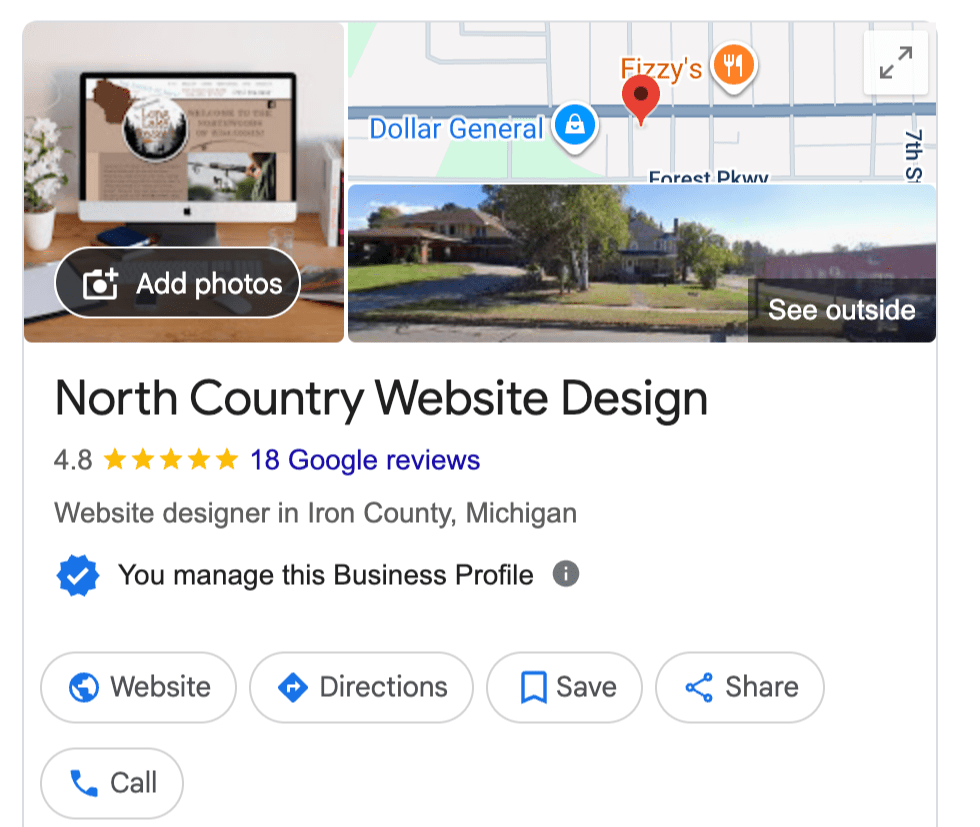
Tip: If you own or manage an eligible business, you can create a Business Profile.
Tip: If you get a message that someone else has already verified the business, you can request ownership of the Business Profile.
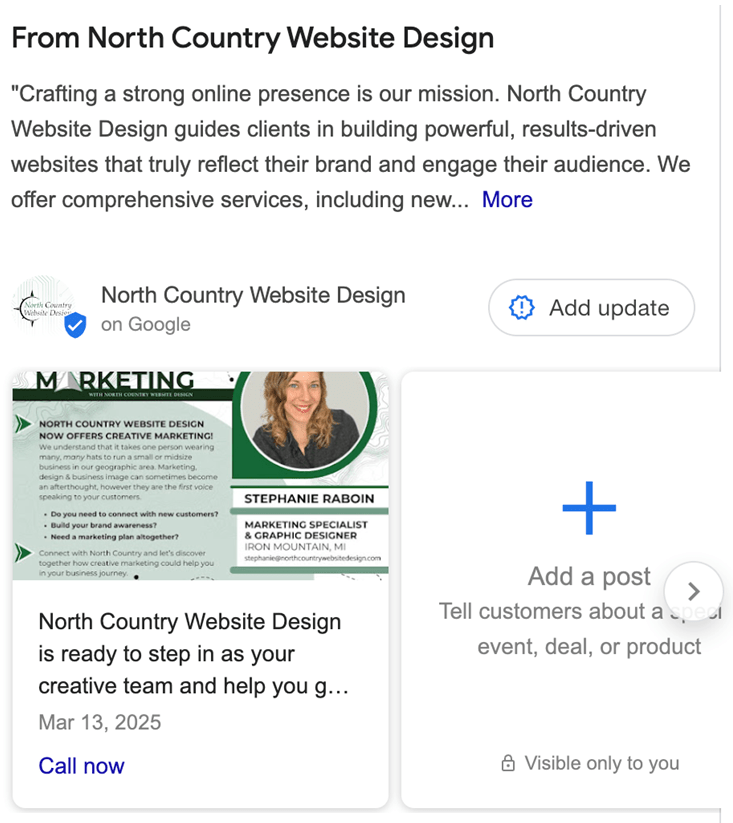
Learn about posts for your Business Profile
Posts can show text, photos or videos, and customers can find them in:
- The 'Updates' or 'Overview' tabs of the Business Profile on mobile on Search and Maps.
- The 'From the owner' section of the Business Profile on your computer on Search and Maps.
- Featured posts that are added directly to your Business Profile on mobile.
Posts about events, deals or specials may automatically show on your Business Profile on mobile. These featured posts are from your social media channels, like Facebook and Instagram, or from posts that you've created on your Business Profile.
Tips:
- When featured posts are available, customers find them in place of reviews on your Business Profile on mobile. They can still access reviews when they tap your business's star rating or check the 'Reviews' tab.
Understand the different types of posts
Important - Posts that include a phone number in the post description might get rejected. To add additional phone numbers to your profile, learn more about edits to your Business Profile.
You can create and customize these types of posts:
Updates: Share info about your business.
- You can add a description, photo, video and an action button with a link. The button should direct customers to a website where they can complete the action, like make a booking, order online, or learn more.
Offers: Provide promotional sales or deals from your business.
- It requires a title, dates, and time. This automatically includes a 'View offer' button on the post. You can also include a description, photo, video, coupon code, link, and terms and conditions.
Events: Promote an event at your business.
- Add a title, start and end dates and times. If you don’t provide a start or end time, the event should show as lasting 24 hours on the event dates. You can also include a description, photo, video and an action button.
Tip: Posts older than six months are archived unless a date range is set.
Create a post
- Go to your Business Profile.
- Select Posts > Add post.
- Select the post type: Update, Offer, or Event
- Select the elements that you want to add to your post.
- To add more details, select the available options, like Button or Coupon code.
- Add information for your post.
- When you’re ready to publish, at the bottom right, select Post.
Tip: To improve your posts, you can add details like a descriptive title, start and end date, and other relevant info. If details change, you can always edit a post to keep the information up-to-date.
Want help navigating your business journey and items like Google Business Posts? Contact us today!